Captions have become an essential part of modern video content. Whether you’re creating YouTube videos, Instagram Reels, TikToks, online courses, podcasts, or business presentations, captions help make your content more accessible and engaging.
Studies show that many people watch videos without sound, especially on social media platforms. Captions allow viewers to follow along even when audio is muted. They also improve accessibility for people who are deaf or hard of hearing and can increase watch time and audience retention.
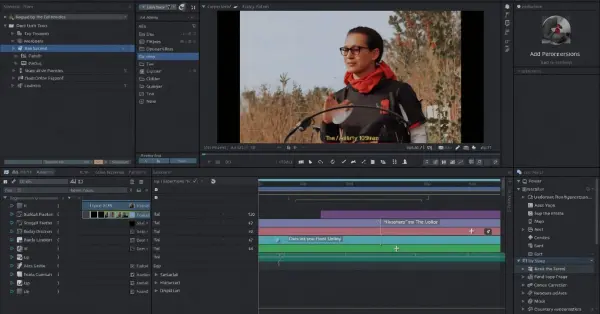
If you’re using Adobe Premiere Pro, adding captions is easier than ever thanks to the built-in Speech-to-Text feature. Instead of typing every word manually, Premiere Pro can automatically generate captions from your video’s audio in just a few clicks.
In this complete guide, you’ll learn everything you need to know about adding captions in Premiere Pro. We’ll cover automatic caption generation, manual caption creation, editing captions, customizing styles, exporting caption files, troubleshooting common problems, and best practices for creating professional captions.
What Are Captions in Premiere Pro?
Captions are text versions of spoken dialogue and important audio information displayed on a video screen.
They help viewers understand content even when they cannot hear the audio.
In Adobe Premiere Pro, captions can be:
- Automatically generated using Speech-to-Text
- Created manually
- Exported as separate subtitle files
- Burned directly into videos
Captions are widely used on:
- YouTube videos
- Instagram Reels
- TikTok videos
- Facebook videos
- Online courses
- Corporate training videos
- Podcasts
- Streaming content
Why Should You Add Captions to Your Videos?
Many creators underestimate the value of captions. However, captions provide several important benefits.
Improved Accessibility
Captions allow people who are deaf or hard of hearing to understand video content.
Better Engagement
Many viewers watch videos on mute. Captions help keep them engaged.
Increased Watch Time
Videos with captions often have higher audience retention rates.
Better SEO
Search engines can use caption text to better understand video content.
Improved User Experience
Captions help viewers understand accents, technical terms, and noisy audio.
Premiere Pro Caption Features
Adobe Premiere Pro includes powerful captioning tools.
Key Features
- Automatic Speech-to-Text
- Multiple language support
- Caption editing tools
- Caption styling options
- SRT export support
- Open caption support
- Closed caption support
These features make Premiere Pro one of the most popular video editing programs for caption creation.
Method 1: How to Automatically Generate Captions in Premiere Pro
Automatic caption generation is the fastest and easiest method.
Step 1: Import Your Video
Open Premiere Pro and create a project.
Import your video by:
- Clicking File > Import
- Dragging the video into the Project panel
Place the video on the timeline.
Step 2: Open the Text Panel
Navigate to:
Window > Text
The Text panel contains all transcription and captioning tools.
You’ll see three tabs:
- Transcript
- Captions
- Graphics
Select Transcript.
Step 3: Transcribe the Sequence
Click:
Transcribe Sequence
A settings window will appear.
Choose:
Language
Select the language spoken in your video.
Examples include:
- English
- Spanish
- French
- German
- Hindi
- Arabic
Audio Track
Choose which audio track contains speech.
Speaker Detection
Enable speaker detection if multiple people are talking.
Click:
Transcribe
Premiere Pro will analyze the audio and create a transcript.
The process may take several minutes depending on video length.
Step 4: Review the Transcript
Once transcription is complete, carefully review the text.
Automatic transcription is highly accurate, but mistakes can occur.
Common errors include:
- Names
- Technical terms
- Slang
- Accents
Edit incorrect words directly inside the Transcript panel.
This saves time later.
Step 5: Create Captions
Click:
Create Captions
A new settings window will appear.
Choose:
Caption Format
Options include:
- Subtitle
- Open Captions
- Broadcast Captions
Most creators choose Subtitle.
Maximum Characters Per Line
Recommended:
- 32–42 characters
Maximum Caption Length
Recommended:
- 2 lines
Minimum Duration
Recommended:
- 1 second
Click:
Create Captions
Premiere Pro automatically generates caption blocks on the timeline.
Method 2: How to Add Captions Manually
Manual captions provide maximum control.
Step 1: Create a Caption Track
Go to:
File > New > Captions
Choose a caption format.
A caption track appears in the timeline.
Step 2: Add Caption Segments
Move the playhead.
Click the + button.
Enter caption text.
Repeat for each section.
Step 3: Adjust Timing
Drag caption clips to:
- Change start times
- Change end times
- Match spoken dialogue
Proper timing improves readability.
How to Edit Captions in Premiere Pro
After captions are created, you can edit them.
Edit Text
Select a caption.
Open the Text panel.
Change:
- Words
- Punctuation
- Capitalization
- Grammar
Split Captions
Long captions are harder to read.
Split large captions into smaller segments.
This improves viewer experience.
Merge Captions
Short captions can sometimes be combined.
Merging captions creates smoother reading.
How to Style Captions
Professional captions improve video quality.
Change Font
Select a caption.
Open Essential Graphics.
Choose:
- Arial
- Helvetica
- Montserrat
- Roboto
Simple fonts work best.
Change Font Size
Increase size for mobile viewers.
Most social media videos require larger text.
Change Color
Common colors include:
- White
- Yellow
- Light blue
White text with a black shadow is often easiest to read.
Add Background
Background boxes improve visibility.
Especially useful for:
- Outdoor footage
- Bright scenes
- Fast-moving content
Add Shadows
Text shadows increase readability.
This is highly recommended.
Open Captions vs Closed Captions
Understanding the difference is important.
Open Captions
Open captions are permanently embedded into the video.
Advantages:
- Always visible
- Great for social media
- No platform compatibility issues
Disadvantages:
- Cannot be turned off
Closed Captions
Closed captions can be enabled or disabled.
Advantages:
- Viewer control
- Multiple language support
Disadvantages:
- Requires platform support
How to Export Captions
Premiere Pro offers multiple export options.
Burn Captions Into Video
Go to Export Settings.
Select:
Burn Captions Into Video
The captions become permanent.
Best for:
- TikTok
Export SRT File
Choose:
Create Sidecar File
Premiere Pro generates an SRT file.
Best for:
- YouTube
- Vimeo
- Online courses
Best Caption Practices
Follow these tips for professional captions.
Keep Captions Short
Avoid large blocks of text.
Use Proper Grammar
Good grammar improves readability.
Sync Captions Correctly
Match speech timing accurately.
Avoid Covering Faces
Place captions where they don’t block important content.
Use Consistent Styling
Keep fonts, colors, and sizes consistent.
Common Caption Problems and Solutions
Captions Not Appearing
Check:
- Caption track visibility
- Export settings
Wrong Transcription
Review transcript before creating captions.
Captions Out of Sync
Adjust timing manually.
Font Too Small
Increase font size for mobile viewing.
Export Errors
Update Premiere Pro to the latest version.
Captions for Different Platforms
YouTube
- Upload SRT files
- Use accurate punctuation
- Enable multiple languages
Instagram Reels
- Use larger fonts
- Burn captions into video
TikTok
- Keep captions short
- Use bold text
- Use open captions for better engagement
Frequently Asked Questions
Does Premiere Pro have automatic captions?
Yes. Premiere Pro includes a built-in Speech-to-Text feature that automatically generates captions.
Are Premiere Pro captions accurate?
They are generally very accurate but should always be reviewed and edited.
Can Premiere Pro export SRT files?
Yes. Premiere Pro supports SRT export through the caption export settings.
What are the best caption settings?
Most creators use:
- 2 lines maximum
- 32–42 characters per line
- White text with shadow
Are captions important for social media?
Yes. Captions improve engagement, accessibility, and viewer retention.
Conclusion
Learning how to add captions in Premiere Pro is one of the best skills a video creator can develop. Captions make videos more accessible, increase audience engagement, improve watch time, and help viewers consume content in any environment.
Whether you choose automatic Speech-to-Text captions or manually create them, Premiere Pro provides all the tools needed to produce professional-quality captions. By following the steps and best practices in this guide, you can create clear, accurate, and visually appealing captions that enhance every video you publish.
As video content continues to dominate social media and online marketing, captions are no longer optional—they are an essential part of modern video production.

Ray Bradbury was an American author known for imaginative science fiction and fantasy, including Fahrenheit 451, shaping modern literature with poetic style and timeless themes. Read more on intscaptions.com today